March 17, 2017

Blended Assessments of Learning


ONE SENTENCE SUMMARY

Different modes of assessments based on course objectives provide faculty with comprehensive learning portfolios of their students and promote academic integrity through prevention. 

REACTION    

My experience teaching (face-to-face in the classroom or computer lab) took place before learning managements systems were available. Assessments included exercise and project assignments, in-class exams, and the use of Minitab. As an instructional technologist I have had the opportunity to work individually with faculty to assist in the effective use Canvas (learning management system) and other cloud based resources to assess student learning. Some of my thoughts are below:

Informal Assessments

Providing multiple opportunities to participate in informal assessments lessens the stress for students but these assessments should be purposeful and include faculty feedback. Some tools to consider:
  1. Most learning management system include practice quizzes, which provides preliminary feedback to faculty and help students prepare for actual graded exams. 
  1. I look forward to sharing the One sentence summary with faculty who have not used this assessment.  A step-by-step procedure :
Description. This simple technique challenges students to answer the questions "Who does what to whom, when, where, how, and why?" (represented by the letters WDWWWWHW) about a given topic, and then to synthesize those answers into a simple informative, grammatical, and long summary sentence.
    1. Select an important topic or work that your students have recently studied in your course and that you expect them to learn to summarize.
    2. Working as quickly as you can, answer the questions "Who did/Does What to Whom, When, Where, How and Why?" in relation to that topic. Note how long this first step takes you.
    3. Next, turn your answers into a grammatical sentence that follows WDWWWWHS pattern. Not how long this second step takes.
    4. Allow your students up to twice as much time as it took you to carry out the task and give them clear direction on the One-Sentence Summary technique before you announce the topic to be summarized
  1. The Muddiest Point is a simple but effective way to determine what point was least clear to students. However, if implemented regularly (e.g. once weekly or after each class) summarizing and acting on student feedback is essential for making the assessment meaningful. 
  1. Student generated questions: Online discussions provide a forum for students to share questions, provide feedback, and collect their questions into shared documents such as a Google doc, spreadsheet, or presentation. Using the groups tool available in many learning management systems students could write questions for their own group and then quiz other groups who have not seen the questions. In turn faculty can assess these questions and determine which are suitable for practice quizzes or graded assessments. 
Formal Assessments

Developing different types of online assessments: summative, formative, multiple choice, short essay, practice, graded exams, assignments, discussions, and group presentations to measure student learning offers several advantages:
  • Help maintain academic integrity by not focuses on one type of assessment such as multiple-choice quizzes.
  • Provides an in-depth assessment of students and determines their strengths and weakness based on the type of assessment.
  • Allows faculty to collect feedback on what works best for their students in achieving course objectives.
Exams and quizzes

Multiple choice exams with an emphasis on application and higher-level thinking are difficult to write effectively and can take significant time. Taking advantage of resources such as 10 examples of question improvement and Examples of Multiple Choice Items at the Levels of Bloom’s Taxonomy help faculty with this difficult, time-consuming process.

Publisher test banks provide faculty a reasonable efficient way to create quizzes that can be used for practice and low-stakes assessment (e.g. ensure that students are completing assignments such as readings). In addition faculty can curate the best questions and write those of their own to build their own improved question banks. 

Essays/Academic Prompts

In a small college where class sizes are typically less than 30 students, the focus is less on multiple-choice exams and more on essays, projects, and presentations. 

Learning management systems such as Canvas provide faculty different tools to assess student contributions in writing: such as essay or paper assignment submissions, links to an online blog, or interactions with other students (wiki, discussions, document collaboration in real-time). One of Canvas strengths is the ease in assessing documents with SpeedGrader, which provides inline annotation, text and multimedia commenting), and grading. Students can comment on their assessed papers providing a trail of student-faculty interaction.   

Projects/Authentic Tasks

Audio and video recordings provide opportunities for different modalities of student expression, which can be submitted as assignments and included in discussions. Most learning management systems support these features. In Canvas students can record media with the browser, upload video or audio recordings as files, or use their smartphones to create multimedia recording and submit them. In addition their is the fluency of commenting and feedback that is an essential part of evaluating student recordings. 

ePortfolios such as those for teacher education are a promising but often underutilized assessment that can be summative, formative, and authentic. To see testimonies read The Benefits of E-portfolios for Students and Faculty in Their Own Words. Although there are significant benefits to students in completing ePortfolios, it is essential that student work be consistently assessed by faculty, mentors, peers, and advisors with feedback. Such consistent feedback can take considerable time and must be planned in advance by reviewers. 

Promoting Academic Integrity

Respondus LockDownBrowser, which integrates with most learning management systems, is advertised as a tool to prevent student cheating. It was added to Canvas at Elmira College in response to faculty concerns about academic integrity in high-stakes exams taken in large classrooms. However, online proctoring tools such as LDB can also be framed in a more directed, student-centered approach: a tool for reducing outside distractions and focusing student interaction with the assessment. Proctored exams using tools such as LDB work best in a F2F environment. 

Promoting Academic Integrity in Online Education is a special PDF report from Faculty Focus that provides a variety of helpful articles such as the catchy “91 Ways to Maintain Academic Integrity in Online Courses"

MOST IMPORTANT TAKE-AWAYS
  • Based on previous faculty experiences students taken a blend of online and face-to-face assessments have better outcomes.
  • Writing multiple-choice questions that effectively measure student knowledge (especially) higher-level thinking is difficult and requires time, experience, and re-writing (based on student responses). 
  • Examples of assessment strategies provides faculty a framework to choose which assessments meet the needs of their students
  • “Authentic assessment—assessing student abilities to apply knowledge, skills, and attitudes to real world problems—is not only possible in an online environment; it is getting more popular.”
  • Define course objectives so they are clear to students, determine how they will meet these objectives (e.g. essays, presentations, audio recordings) and choose the appropriate assessments (e.g. online exam, blog, media assignment) to evaluate their learning.
MY FAVORITE QUOTE

“The most crucial step needed in each unit of instruction is the preparation for students’ transfer of learning to new contexts. If learning is not transferred from the place of learning to practical application, there can be no positive return on investment of the time needed to create, implement, and evaluate instruction”

HELPFUL LINKS

March 05, 2017

Understanding Blended Learning


One sentence summary

An effectively designed blended course combines the strengths of face-to-face and online learning and offers new learning opportunities for students and development opportunities for faculty. 

(Kudos to the UCF team for a great chapter! I used the eBook version for note taking and highlighting on my iPad.)

Reaction

Many years ago I taught face-to-face when online was only by dialup (LOL) but have not taught blended or fully online courses. As an instructional technologist I have worked extensively with faculty who are new to Canvas and teaching blended or online for the first time. As a starting point for my reaction I thought it helpful to think of blended/online courses that reflect lack of experience and expertise in teaching online.

Blended courses that tack on F2F courses typically offer in-class sessions first and last weeks of the course. The last week often is used for in-class presentations, proctored exams, or other methods of final assessment. The remaining traditional part of the course is converted to learning management objects: PowerPoint slides, readings (PDF’s or links), online assignments (drop boxes), and discussion forums to replace in class conversations.  Such courses often lack objectives, integration with the F2F and online components, student outcomes, and an environment that promotes active online engagement and assessment. The focus is often on mastery with the LMS and not how  

Re-designing a (blended) course from scratch, not knowing where to start, and how to define course components is challenging. In Educause’s Report on Blended Learning lists competencies (with example behaviors) and guiding principles that help guide faculty through the development of a blended course. For example, the active learning competency involves planning and implementing tasks that engage the student in an active role (e.g. the instructor encourages students to interact with each other by assigning team tasks and projects where appropriate) and the emulate the student experience principle: use the blended learning model to teach instructors how to teach blended learning courses. 

The Quality Matters Rubric is a useful tool for assessing course design through 8general standards organized into 43 review standards. But this article: What Faculty Need to Know About ‘Learner Experience Design’ puts into perspective such checklists (with points) as the QM rubric by focusing on three big ideas: relationships matter, tech should increase - not replace - social interaction, and walk in students’ shoes. 

Web sites such as UCF Examples of Approaches and U Waterloo examples of blended courses provide concrete examples that instructors can refer to as they design their course.

Most important takeaways

“There is clear consensus that the best strategies for design begins [sic] by clearly defining course objectives before coming up with course activities, assignments and assessments”

"A superficial understanding of blended learning is that it simply adds non-F2F elements into the traditional course structure. But this most often results in a dysfunctional phenomenon known as the“course-and-a-half.”

Meeting with students (in-person, by phone, by conference) before the course starts can help instructors assess student competencies and needs in advance, especially important if F2F are few. 

My favorite quote

In 2002 Troha asked “why do so many blended initiatives turn into frustrating boondoggles, consuming far more time... than anyone anticipated?” 

Helpful links

Not so helpful

June 05, 2014

Assessing Student Audio Journals


Introduction

Blogs, wikis, and e-portfolios provide students tools to write in a public venue with opportunities for peer and instructor feedback. For assessment of student journals instructors can use a course management system’s (e.g. Blackboard) private journaling tool to engage in one-on-one conversation with their students. However, most web based systems including Blackboard are cumbersome in enabling two-way audio journals that include content such as diction, reflection, or presentation and instructor feedback. The process to record, save to .mp3, and upload the file to the web for each audio event is tedious, time-consuming, and can be frustrating over time. 

Instructors need easy-to-use and affordable technology that engages students in an efficient back-and-forth exchange of their audio recordings (including text, images, attachments, and hyperlinks) — something like leaving messages on an answering machine with the flexibility of using digital media. In addition instructors need to efficiently manage the student journals and organize them into course units. After thinking through the process I developed an instructional model for faculty using the free version of Evernote, which more than meets the essential requirements and includes these advantages:
  • Students can register for a free Evernote account using their e-mail address and a unique password. If a student forgets their Evernote password, they can reset it in their e-mail. The process is even easier for students with Google Apps accounts.
  • Students can use Evernote desktop (Mac or Windows) or their smartphone (Android, iPhone, or Windows Phone) to record audio notes. They also had the option of adding photos or text to their notes. 
  • A free Evernote account provides 60MB of storage per month, which is more than sufficient for several short audio recordings. Assuming 500KB per minute of high quality recording, students and faculty should be able to record up to two hours of audio per month. 
  • With the free version of Evernote students can chose one notebook with Modify rights to allow instructors to respond within a student note or create a separate note within the shared notebook. 
  • Students and faculty could engage in their conversation by inserting mixed media (text, images, embedded audio) in single or separate Evernote notes.
  • Instructors can easily manage their student shared notebooks using Evernote Desktop or Evernote Web by placing them into course Stacks. 
  • Instructor audio comments count as part of student storage so there is no quota issue for instructors.
Observations

Based on an instructor's successful experience with a class of more than 20 students who used Evernote exclusively for recording their course journals, the following observations were noted.  
  • Evernote is a huge timesaver for instructors because they can easily organize, play, read, and respond to student journal entries without technology getting in the way. They can play recordings with their smartphones, tablets, Evernote Desktop, or Evernote Web.
  • More than 90% of students have a smartphone, iPhone (2/3) or Android, and used them almost exclusively for their recordings. Those who did not have a smartphone used an iPod touch or laptop. 
  • The voice recording quality of smartphones is noticeably superior to that of a laptop's webcam, which was sometimes affected by ambient sound. 
  • The embedded media player in Evernote Desktop for Windows does not always display properly and when it does may not play. It was sometimes necessary for the instructor to use Evernote Web for audio playback.
Quickstart for Students

Getting started

As part of your course you will be able to record, annotate, and organize a personal digital audio journal that will allow your instructor to listen and provide feedback on your progress. Follow these steps to create your free Evernote account and set up a shared notebook (your journal).

Steps to Creating Your Evernote Account

Follow these steps to install Evernote on your personal computer's desktop, and on your Android, iPhone/iPad/iPod touch or Windows phone and sign up for a free account using your e-mail address.
  • Go to https://evernote.com/getting_started and click to play the Introduction.
  • Choose Installing Evernote to install the application on your Windows or Macintosh laptop.
  • Choose Create your account and follow the steps to create your account. 
  • Use a password that is easy to remember but hard to figure out. However, it should not be the same as your e-mail password.
  • Click the Register button.
  • Log on to Evernote for your Mac or PC and explore the interface, creating a note or two for practice (Choose step 4).
  • Choose steps 5 and 6 (Adding an image and How Sync works) so you know how to add an image and sync.
  • Before you sign off sure to click the Sync button to sync any notes to the Web.
  • Evernote will sync automatically every several minutes or so but you should always sync before switching devices or logging off.
Creating a New Notebook and setting it as default
  • In the left sidebar hover your mouse over Notebooks and to the right choose New Notebook from the drop arrow.
  • Type your full name followed by Audio Journal. In the example below Mark Twain is used.
  • Click the Save button.
  • In the left sidebar hover over Mark Twain Audio Journal and choose Properties from the Drop arrow.
  • Check the box Make this my default notebook and click the Save button.
  • By making your Audio Journal as the default notebook all audio journals that you record will be automatically saved in this notebook.
Sharing your Notebook
  • In the left sidebar hover over Mark Twain Audio Journal and to the right choose Share this notebook from the drop arrow.
  • Click Share with Individuals.
  • Verify that you are sharing your Audio Journal notebook.
  • Enter the e-mail address of your instructor.
  • Choose Modify notes under individuals who can join. This will allow your instructor to add audio and/or text feedback to you’re the notes in your journal.
  • Click the green Share button.
  • Note the wireless-like icon to the left of your notebook, which indicates that it is being shared.
Attention! With the free version of Evernote you can only one notebook for collaboration (modify notes.)
  • Click the New Note button and title it Text note from your name. Attention! It is always important to title each note with a descriptive name.
  • Type your first note with a signature. You can experiment with the formatting tools if you would like. Note that the new note is automatically saved to your Audio Journal, which is your default notebook. In addition Evenote Web automatically saves and syncs your note to your cloud account.
If you save notes outside the Audio Journal, you will need to manually drag it there.

  •   Sign out of the Web account.
Creating a Multimedia Note with your Smartphone App

Although you can not record audio from a microphone or take a camera snapshot using Evernote Web, these features are available on Evernote Desktop for your PC or Mac or the free app on your smartphone.
  • Make sure you have downloaded the free Evernote app from your iPhone https://itunes.apple.com/us/app/evernote/id281796108?mt=8 or Android phone https://play.google.com/store/apps/details?id=com.evernote
  • Sign in to the app.
  • Create a New Note and make sure that it is saved to your Audio Journal notebook.
  • Title the note as My First Audio Note
  • Type a paragraph of text summarizing your note and then sign your name. You can use your smartphone’s built-in voice recognition (e.g. Siri) to quickly insert text :)
  • Use the Camera to take a photo of yourself and add it below the text.
  • Next record 30 seconds of audio or more reflecting on what you have learned so far!
  • Click the Save button and then click the Sync button.
Playing Your Recording on Evernote Web
  • Start Firefox, go to http://evernote.com and sign in to Evernote Web.
  • Click to play your latest note in QuickTime Player.
  • Note that your note will also be available on Evernote Desktop on your personal 
  • Mac or PC laptop, though you will need to first sync.
Quickstart for Instructors

This section explain how to join and keep track of shared notebooks using Evernote Web and then to organize them into a stack using Evernote Desktop.
  • Once a student has shared their notebook with you, then accept the invitation in your e-mail.
  • Click the Open Notebook button and log into your Evernote Web account. 
  • When prompted click the Join Notebook button.
  • A list of shared notebooks that you have joined will show up in the sidebar. 
  • Click View My Notebooks. 
  • Repeat the process for each student invitation. 
Click Joined Notebooks to see a listing of notebooks that students have shared with you. Although you can not move joined notebooks to stacks with Evernote web you can file them with the Desktop version.


Using the Evernote Desktop for Windows or Macintosh contra click on a shared notebook and choose Add to stack > New Stack.


  • Rename the stack (e.g. Instructor Course) and add all your students notebooks.

If you encounter difficulty in playing audio notes with Evernote for Windows, use Evernote Web, which appears to be more reliable. I have experienced no such issues with Evernote for Macintosh. Using an Android tablet or iPad is a highly effective portable solution for commenting on student journals. 

November 15, 2013

How to Import Data to a Google Sites List Page

I discovered a script written by Romain Vialard that processes exporting/importing of data from/to a Google Sites List page using a Google Docs spreadsheet. If you would like to take advantage of Sites List features and formatting and have a long table of data to import, then the script is a real time saver. You can also export data from a Sites List page into the spreadsheet that contains the script. 
  • Create a new Google spreadsheet and choose Tools > Script Editor
  • Choose Spreadsheet under Create a Script For
  • Remove the sample script from Code.gs
  • Copy the script from this forum post and paste it into Code.gs
  • Name the project (e.g. Google Sites Export Import) and choose File > Save.
  • Under Select Function you will see (OnOpen, create_list, push_items, and fetch_items). 
  • Close the spreadsheet and re-open and there will be a new List page menu with the choices to Create a list or Fetch list items
  • To create a List page within your site choose List page > Create list. You may need to authorize the app to run. If so, choose List page > Create list again.
  • Provide the URL of the parent page (e.g. http://sites.google.com/site/joefahs/demographics) under which the list page will be created. 
  • Choose a name for your list page (e.g. countries). 
  • Wait patiently for the script to execute. 
  • Go to your page address (e.g. http://sites.google.com/site/joefahs/demographics/countries) to see your automatically created list page. Note! If the script is not available in the List page menu choose Tools > Script Manager and run your scripts from there. 
  • Push items will push data from the spreadsheet into an existing List page replacing the existing data in that list.  
  • You can retrieve data from a list page and put them in the spreadsheet by choosing the script Fetch Items. It will will require the list page's URL and number of columns and will import the data but not the header. You will need to add the headers in the spreadsheet and then sort as needed. 


December 09, 2012

Birthday Celebration Words for Mom

A diversion from the usual technology post. Using Evernote I wrote these words for my mom's recent 90th birthday celebration.

Dear Gram, Mom, Aunt Marge, and Marge,

It is hard to put into words what you mean to your family and me. Although you are celebrating 90 years of a full life that is the envy of others, we recognize your life-long devotion to your family – children, grandchildren, and great grandchildren. You are generous in so many ways – thoughtful gifts that you purchase, gifts of crafts or baked goods, and donations to church and charities. However, it is your gifts of love and time that are treasured by so many of us, certainly your family. Whether you lend an ear to our trials and tribulations, provide sage advice, or share the secrets of baking, we value the time you spend with us. By the way, how many of us have been have tasted mom's legendary chocolate candies or better yet received them as gifts?

You are a model for others who wish to live life to its fullest. Be it daily crossword puzzles, several games of Bridge each and every week, exchanging e-mail and playing Sudoku on your iMac, reading countless books and magazines, or your insatiable curiosity, we know from you some of the secrets to keeping an active and engaging mind. (It is never possible to tell a story within earshot of mom because you are going to have to repeat it for re-listening. Mom's curiosity and constantly wanting to know everything won't allow it otherwise.)

As usual there are stories, some that we won't be able to retell this afternoon. I was the most angelic and well-behaved of mom's four children so she spanked me little (tongue in cheek). Though I do remember a thrashing with the fly-swatter when at eight years old I tried to start a brush fire in the back yard. I will let the rest of my siblings provide the more entertaining tales. 

Because you are so constantly upbeat, it may surprise some to know that in 2 and 1/2 decades you underwent two knee replacement surgeries and three cancer surgeries, the most recent barely two months ago. Your strength, positive outlook on life, and faith helped you met each challenge head on, with relatively little effect on your daily life. In fact you went to Christmas Eve service less than one week after your last knee replacement and were buzzing around with energy and eating a hearty meal the evening of your last cancer surgery!  

Mom, thank you for your love, thank you for your generosity, thank you for your courage, thank you for raising and continuing to mentor the four of us, thank you for your inspiration, and thank you for being the greatest mom and gram in the world!

Love your son Joe

December 01, 2012

Inserting Video into Google Sites Pages

There are a number of ways that you can you add videos to your Google site: use a simple hyperlink to an external page that includes the video (e.g. Vimeo), insert a YouTube video, and insert a Google Docs video. Let's take a look at the last two. 

YouTube

You can easily search for and insert YouTube videos into your Google site by embedding the video into a page. If you plan to create your own YouTube video the limit is 15 minutes by default.  (For steps on how to increase this limit go to http://support.google.com/youtube/bin/answer.py?hl=en&answer=71673 .)
  • For example. Go to http://youtube.com and type Murchison Falls National Park, Uganda in the Search box. 
  • Click on the video thumbnail to open the YouTube page.
  • Copy the web address: http://www.youtube.com/watch?v=NVaPr1zu3lE.
  • Open your Google Sites page and click where you want to embed the video.
  • Choose Insert > Video > YouTube.
  • Paste the web address into the URL box. Check Include border. Check Include title and enter a descriptive name if you wish to title the video.
  • Click the Save button to insert the video.
  • Click to insert the cursor to the right of the video.
  • You should always attribute your source. Press the return or enter key and then choose Edit > Paste to insert the originating URL of the YouTube video.
http://www.youtube.com/watch?v=NVaPr1zu3lE
    Google Drive Videos
      Uploading Your Recording to Google Drive

      You can upload video recordings to your Google Drive and then insert the video into a Google Sites page. For more information refer to Video Files in Google Drive. There are a number of advantages that Google Drive videos have over YouTube. With a Drive quota of up to 30GB it is possible to upload longer videos such as 45 minutes in length, although compressed .mp4 is recommended before uploading. Google Drive sync allows organization of videos in the Google Drive folder on your computer, which are then updated in your Drive share on Google's servers. Videos in Google Drive can be shared with groups and users in your domain when public viewing is not preferred. 
      • Log on to Gmail with your Google Apps account. 
      • Click the Drive link in the top left menu bar to display the Google Drive home page with a directory of any files you may have. 
      • To the right of the RED Create button click the Upload button and choose Files. (Depending on your browser you may also use Drag and Drop as shown in the Appendix.)
      • Locate your video file and click the Open button. 
      • You will be prompted to Upload your video. Keep the default settings: Convert documents and Confirm settings before each upload.   


      • Click the Start upload button. 
      Waiting for your Video Upload
      • Wait patiently. A video can take several minutes to upload, depending on file size. The upload time for a 15 minute video may take up to 60 minutes depending on Internet bandwidth.  
      The bottom strip displays the status of your Google Docs storage
       Share Your Video 

      It may take several minutes for the uploaded video to render and be available for playing.
      • Click the video to open it into Preview mode. 
      • Click the blue Open button in the lower right corner of the screen to display your video (e.g. screen_reader.mp4) with the Google Drive player. 
      • Click the blue Share button. If you want your Google Drive videos to display on your Google Sites web site for viewing on the Internet, clickChange ... then choose Public on the Web
      • Click the Save button.
      • Click Done
      Embed Your Video

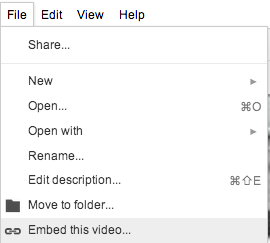
      Use Embed this video to allow playback of your Google Drive videos on mobile devices.
      • Choose File > Embed Video

      • Click in the box to select the HTML code and then from your browser menu choose Edit > Copy

      • Click OK.
      • Click in your Google Sites page where you want the video to display.
      • Choose Insert > More gadgets ... and type embed in the Search box. 
      • Select to select the Embed gadget and then click the blue Select button. 
      • Click in the Embedding snippet box and from your browser menu choose Edit > Paste. You can edit the width and height but make them proportional to the original. 

      • Scroll to the bottom of the gadget window and enter the Width and Height to match the dimensions of your video. 
      • As an option check Include a border around gadget and Display title on gadget, entering a descriptive name. 

      • Click the OK button to insert the gadget. You will need to click the Google Sites blue Save button at the top to save the page changes and display the embedded video. Note that this video will also play on mobile devices. Below is a sample video. 


      Appendix

      Upload Your Recording to Google Docs – Drag and Drop 

      If your browser is Firefox, Safari, or Firefox, then try Drag and Drop as an alternative to uploading your video to Google Docs.
      • Log on to Gmail with your Google Apps account. 
      • Click the Documents link in the top left menu bar. 
      • Locate your video in the Videos folder. Drag your video to your Google Drive window.  
      • You will be prompted to Upload your video. Keep the default settings: Convert documents and Confirm settings before each upload.  
      • Click the Start upload button.

      November 20, 2012

      Inserting Audio into Google Sites Pages

      Google does not provide a direct way to insert or embed audio into Google Sites as it does with video. Playing audio requires uploading the sound file and the use of one or two gadgets depending on your audience and the length of your audio recording. Audio can be uploaded to an external web site or uploaded as an attachment to your Google Sites page.  Next an audio player gadget is inserted, which links to the audio file's URL. The following techniques are especially useful for developers of personal e-portfolios to add evidence of their learning through audio recordings. 

      Scenario 1: Google Audio Player (Flash)

      Advantage: loads and plays audio quickly and plays consistently across all browsers
      Disadvantage: Flash player that will not work on most mobile devices such as an iPad or iPhone.  
      • Create or go to the web page where you will insert the audio.
      • At the bottom of the page click Add files and browse for the audio file.
      • Click Open to attach the file. It may take a few moments to upload depending on the file's size.
      • Refer to the figure below. Control-click (Mac) or Right-click (Windows) on the download arrow icon and choose Copy Link Address. This address will be copied to the Google Audio Player.
      • Locate the point on your page where the audio is to be embedded and choose Insert > More gadgets ...
      • Click Public in the left sidebar.
      • In the Search box type in quotes "Google Audio Player".
      • Click the Search icon to bring up the player(s). 
      • Click once to select the Use Google Audio Player to play .mp3 file.
      • Next click the BLUE Select button to bring up the gadget settings.
      • Click in the mp3 files to play box and remove the entire URL.
      • Click in this now empty box. Right-click (Windows) or Control-click (Mac) and choose Paste. This will paste the address that you copied from your audio attachment. 
      • Backspace out the ?attredirects string of text up to the audio file suffix (e.g. mp3). See below for an example. The part to erase is crossed out. 
      https://sites.google.com/a/elmira.edu/it/gapps
      /gsites/sitesaudio/nzoku_reading.mp3?attredirects=0&d=1
      • Apply settings as described on the figure below.
      • Click the OK button to apply the settings. To play examples click the link below.  
      Examples of audio inserted into Google Sites.

      Scenario 2: Embed Music (No Flash)

      Advantage: Loads quickly and plays on mobile devices.  
      Disadvantage: Larger audio files load slowly on web pages (up to 1 or 3 minutes) using Google Chrome and Firefox. 
      • Create or go to the web page where you will insert the audio.
      • At the bottom of the page click Add files and browse for the audio file.
      • Click Open to attach the file. It may take a few moments to upload depending on the file's size.
      • Refer to the figure below. Control-click (Mac) or Right-click (Windows) on the download arrow icon and choose Copy Link Address. This address will be copied to the Embed Music player.
      • Locate the point on your page where the audio is to be embedded and choose Insert > More gadgets ...
      • Click Public in the left sidebar.
      • In the Search box type in quotes "Embed Music".
      • Click the Search icon to bring up the player(s). 
      • Click once to select Embed Music
      • Next click the BLUE Select button to bring up the gadget settings.
      • Click in the mp3 files to play box and remove the entire URL.
      • Click in this now empty box. Right-click (Windows) or Control-click (Mac) and choose Paste. This will paste the address that you copied from your audio attachment. 
      • Backspace out the ?attredirects string of text up to the audio file suffix (e.g. mp3). See below for an example. The part to erase is crossed out. 
      https://sites.google.com/a/elmira.edu/it/gapps
      /gsites/sitesaudio/nzoku_reading.mp3?attredirects=0&d=1
      • Adjust settings as needed.
      • Click the OK button to apply the settings. Click the link below to play example recordings. 
      Examples of audio inserted into Google Sites

      Distraction Free Reading

      You are not alone if you have struggled to keep your focus reading through articles on the web that are bombarded with still and animated...