June 05, 2014

Assessing Student Audio Journals


Introduction

Blogs, wikis, and e-portfolios provide students tools to write in a public venue with opportunities for peer and instructor feedback. For assessment of student journals instructors can use a course management system’s (e.g. Blackboard) private journaling tool to engage in one-on-one conversation with their students. However, most web based systems including Blackboard are cumbersome in enabling two-way audio journals that include content such as diction, reflection, or presentation and instructor feedback. The process to record, save to .mp3, and upload the file to the web for each audio event is tedious, time-consuming, and can be frustrating over time. 

Instructors need easy-to-use and affordable technology that engages students in an efficient back-and-forth exchange of their audio recordings (including text, images, attachments, and hyperlinks) — something like leaving messages on an answering machine with the flexibility of using digital media. In addition instructors need to efficiently manage the student journals and organize them into course units. After thinking through the process I developed an instructional model for faculty using the free version of Evernote, which more than meets the essential requirements and includes these advantages:
  • Students can register for a free Evernote account using their e-mail address and a unique password. If a student forgets their Evernote password, they can reset it in their e-mail. The process is even easier for students with Google Apps accounts.
  • Students can use Evernote desktop (Mac or Windows) or their smartphone (Android, iPhone, or Windows Phone) to record audio notes. They also had the option of adding photos or text to their notes. 
  • A free Evernote account provides 60MB of storage per month, which is more than sufficient for several short audio recordings. Assuming 500KB per minute of high quality recording, students and faculty should be able to record up to two hours of audio per month. 
  • With the free version of Evernote students can chose one notebook with Modify rights to allow instructors to respond within a student note or create a separate note within the shared notebook. 
  • Students and faculty could engage in their conversation by inserting mixed media (text, images, embedded audio) in single or separate Evernote notes.
  • Instructors can easily manage their student shared notebooks using Evernote Desktop or Evernote Web by placing them into course Stacks. 
  • Instructor audio comments count as part of student storage so there is no quota issue for instructors.
Observations

Based on an instructor's successful experience with a class of more than 20 students who used Evernote exclusively for recording their course journals, the following observations were noted.  
  • Evernote is a huge timesaver for instructors because they can easily organize, play, read, and respond to student journal entries without technology getting in the way. They can play recordings with their smartphones, tablets, Evernote Desktop, or Evernote Web.
  • More than 90% of students have a smartphone, iPhone (2/3) or Android, and used them almost exclusively for their recordings. Those who did not have a smartphone used an iPod touch or laptop. 
  • The voice recording quality of smartphones is noticeably superior to that of a laptop's webcam, which was sometimes affected by ambient sound. 
  • The embedded media player in Evernote Desktop for Windows does not always display properly and when it does may not play. It was sometimes necessary for the instructor to use Evernote Web for audio playback.
Quickstart for Students

Getting started

As part of your course you will be able to record, annotate, and organize a personal digital audio journal that will allow your instructor to listen and provide feedback on your progress. Follow these steps to create your free Evernote account and set up a shared notebook (your journal).

Steps to Creating Your Evernote Account

Follow these steps to install Evernote on your personal computer's desktop, and on your Android, iPhone/iPad/iPod touch or Windows phone and sign up for a free account using your e-mail address.
  • Go to https://evernote.com/getting_started and click to play the Introduction.
  • Choose Installing Evernote to install the application on your Windows or Macintosh laptop.
  • Choose Create your account and follow the steps to create your account. 
  • Use a password that is easy to remember but hard to figure out. However, it should not be the same as your e-mail password.
  • Click the Register button.
  • Log on to Evernote for your Mac or PC and explore the interface, creating a note or two for practice (Choose step 4).
  • Choose steps 5 and 6 (Adding an image and How Sync works) so you know how to add an image and sync.
  • Before you sign off sure to click the Sync button to sync any notes to the Web.
  • Evernote will sync automatically every several minutes or so but you should always sync before switching devices or logging off.
Creating a New Notebook and setting it as default
  • In the left sidebar hover your mouse over Notebooks and to the right choose New Notebook from the drop arrow.
  • Type your full name followed by Audio Journal. In the example below Mark Twain is used.
  • Click the Save button.
  • In the left sidebar hover over Mark Twain Audio Journal and choose Properties from the Drop arrow.
  • Check the box Make this my default notebook and click the Save button.
  • By making your Audio Journal as the default notebook all audio journals that you record will be automatically saved in this notebook.
Sharing your Notebook
  • In the left sidebar hover over Mark Twain Audio Journal and to the right choose Share this notebook from the drop arrow.
  • Click Share with Individuals.
  • Verify that you are sharing your Audio Journal notebook.
  • Enter the e-mail address of your instructor.
  • Choose Modify notes under individuals who can join. This will allow your instructor to add audio and/or text feedback to you’re the notes in your journal.
  • Click the green Share button.
  • Note the wireless-like icon to the left of your notebook, which indicates that it is being shared.
Attention! With the free version of Evernote you can only one notebook for collaboration (modify notes.)
  • Click the New Note button and title it Text note from your name. Attention! It is always important to title each note with a descriptive name.
  • Type your first note with a signature. You can experiment with the formatting tools if you would like. Note that the new note is automatically saved to your Audio Journal, which is your default notebook. In addition Evenote Web automatically saves and syncs your note to your cloud account.
If you save notes outside the Audio Journal, you will need to manually drag it there.

  •   Sign out of the Web account.
Creating a Multimedia Note with your Smartphone App

Although you can not record audio from a microphone or take a camera snapshot using Evernote Web, these features are available on Evernote Desktop for your PC or Mac or the free app on your smartphone.
  • Make sure you have downloaded the free Evernote app from your iPhone https://itunes.apple.com/us/app/evernote/id281796108?mt=8 or Android phone https://play.google.com/store/apps/details?id=com.evernote
  • Sign in to the app.
  • Create a New Note and make sure that it is saved to your Audio Journal notebook.
  • Title the note as My First Audio Note
  • Type a paragraph of text summarizing your note and then sign your name. You can use your smartphone’s built-in voice recognition (e.g. Siri) to quickly insert text :)
  • Use the Camera to take a photo of yourself and add it below the text.
  • Next record 30 seconds of audio or more reflecting on what you have learned so far!
  • Click the Save button and then click the Sync button.
Playing Your Recording on Evernote Web
  • Start Firefox, go to http://evernote.com and sign in to Evernote Web.
  • Click to play your latest note in QuickTime Player.
  • Note that your note will also be available on Evernote Desktop on your personal 
  • Mac or PC laptop, though you will need to first sync.
Quickstart for Instructors

This section explain how to join and keep track of shared notebooks using Evernote Web and then to organize them into a stack using Evernote Desktop.
  • Once a student has shared their notebook with you, then accept the invitation in your e-mail.
  • Click the Open Notebook button and log into your Evernote Web account. 
  • When prompted click the Join Notebook button.
  • A list of shared notebooks that you have joined will show up in the sidebar. 
  • Click View My Notebooks. 
  • Repeat the process for each student invitation. 
Click Joined Notebooks to see a listing of notebooks that students have shared with you. Although you can not move joined notebooks to stacks with Evernote web you can file them with the Desktop version.


Using the Evernote Desktop for Windows or Macintosh contra click on a shared notebook and choose Add to stack > New Stack.


  • Rename the stack (e.g. Instructor Course) and add all your students notebooks.

If you encounter difficulty in playing audio notes with Evernote for Windows, use Evernote Web, which appears to be more reliable. I have experienced no such issues with Evernote for Macintosh. Using an Android tablet or iPad is a highly effective portable solution for commenting on student journals. 

November 15, 2013

How to Import Data to a Google Sites List Page

I discovered a script written by Romain Vialard that processes exporting/importing of data from/to a Google Sites List page using a Google Docs spreadsheet. If you would like to take advantage of Sites List features and formatting and have a long table of data to import, then the script is a real time saver. You can also export data from a Sites List page into the spreadsheet that contains the script. 
  • Create a new Google spreadsheet and choose Tools > Script Editor
  • Choose Spreadsheet under Create a Script For
  • Remove the sample script from Code.gs
  • Copy the script from this forum post and paste it into Code.gs
  • Name the project (e.g. Google Sites Export Import) and choose File > Save.
  • Under Select Function you will see (OnOpen, create_list, push_items, and fetch_items). 
  • Close the spreadsheet and re-open and there will be a new List page menu with the choices to Create a list or Fetch list items
  • To create a List page within your site choose List page > Create list. You may need to authorize the app to run. If so, choose List page > Create list again.
  • Provide the URL of the parent page (e.g. http://sites.google.com/site/joefahs/demographics) under which the list page will be created. 
  • Choose a name for your list page (e.g. countries). 
  • Wait patiently for the script to execute. 
  • Go to your page address (e.g. http://sites.google.com/site/joefahs/demographics/countries) to see your automatically created list page. Note! If the script is not available in the List page menu choose Tools > Script Manager and run your scripts from there. 
  • Push items will push data from the spreadsheet into an existing List page replacing the existing data in that list.  
  • You can retrieve data from a list page and put them in the spreadsheet by choosing the script Fetch Items. It will will require the list page's URL and number of columns and will import the data but not the header. You will need to add the headers in the spreadsheet and then sort as needed. 


December 09, 2012

Birthday Celebration Words for Mom

A diversion from the usual technology post. Using Evernote I wrote these words for my mom's recent 90th birthday celebration.

Dear Gram, Mom, Aunt Marge, and Marge,

It is hard to put into words what you mean to your family and me. Although you are celebrating 90 years of a full life that is the envy of others, we recognize your life-long devotion to your family – children, grandchildren, and great grandchildren. You are generous in so many ways – thoughtful gifts that you purchase, gifts of crafts or baked goods, and donations to church and charities. However, it is your gifts of love and time that are treasured by so many of us, certainly your family. Whether you lend an ear to our trials and tribulations, provide sage advice, or share the secrets of baking, we value the time you spend with us. By the way, how many of us have been have tasted mom's legendary chocolate candies or better yet received them as gifts?

You are a model for others who wish to live life to its fullest. Be it daily crossword puzzles, several games of Bridge each and every week, exchanging e-mail and playing Sudoku on your iMac, reading countless books and magazines, or your insatiable curiosity, we know from you some of the secrets to keeping an active and engaging mind. (It is never possible to tell a story within earshot of mom because you are going to have to repeat it for re-listening. Mom's curiosity and constantly wanting to know everything won't allow it otherwise.)

As usual there are stories, some that we won't be able to retell this afternoon. I was the most angelic and well-behaved of mom's four children so she spanked me little (tongue in cheek). Though I do remember a thrashing with the fly-swatter when at eight years old I tried to start a brush fire in the back yard. I will let the rest of my siblings provide the more entertaining tales. 

Because you are so constantly upbeat, it may surprise some to know that in 2 and 1/2 decades you underwent two knee replacement surgeries and three cancer surgeries, the most recent barely two months ago. Your strength, positive outlook on life, and faith helped you met each challenge head on, with relatively little effect on your daily life. In fact you went to Christmas Eve service less than one week after your last knee replacement and were buzzing around with energy and eating a hearty meal the evening of your last cancer surgery!  

Mom, thank you for your love, thank you for your generosity, thank you for your courage, thank you for raising and continuing to mentor the four of us, thank you for your inspiration, and thank you for being the greatest mom and gram in the world!

Love your son Joe

December 01, 2012

Inserting Video into Google Sites Pages

There are a number of ways that you can you add videos to your Google site: use a simple hyperlink to an external page that includes the video (e.g. Vimeo), insert a YouTube video, and insert a Google Docs video. Let's take a look at the last two. 

YouTube

You can easily search for and insert YouTube videos into your Google site by embedding the video into a page. If you plan to create your own YouTube video the limit is 15 minutes by default.  (For steps on how to increase this limit go to http://support.google.com/youtube/bin/answer.py?hl=en&answer=71673 .)
  • For example. Go to http://youtube.com and type Murchison Falls National Park, Uganda in the Search box. 
  • Click on the video thumbnail to open the YouTube page.
  • Copy the web address: http://www.youtube.com/watch?v=NVaPr1zu3lE.
  • Open your Google Sites page and click where you want to embed the video.
  • Choose Insert > Video > YouTube.
  • Paste the web address into the URL box. Check Include border. Check Include title and enter a descriptive name if you wish to title the video.
  • Click the Save button to insert the video.
  • Click to insert the cursor to the right of the video.
  • You should always attribute your source. Press the return or enter key and then choose Edit > Paste to insert the originating URL of the YouTube video.
http://www.youtube.com/watch?v=NVaPr1zu3lE
    Google Drive Videos
      Uploading Your Recording to Google Drive

      You can upload video recordings to your Google Drive and then insert the video into a Google Sites page. For more information refer to Video Files in Google Drive. There are a number of advantages that Google Drive videos have over YouTube. With a Drive quota of up to 30GB it is possible to upload longer videos such as 45 minutes in length, although compressed .mp4 is recommended before uploading. Google Drive sync allows organization of videos in the Google Drive folder on your computer, which are then updated in your Drive share on Google's servers. Videos in Google Drive can be shared with groups and users in your domain when public viewing is not preferred. 
      • Log on to Gmail with your Google Apps account. 
      • Click the Drive link in the top left menu bar to display the Google Drive home page with a directory of any files you may have. 
      • To the right of the RED Create button click the Upload button and choose Files. (Depending on your browser you may also use Drag and Drop as shown in the Appendix.)
      • Locate your video file and click the Open button. 
      • You will be prompted to Upload your video. Keep the default settings: Convert documents and Confirm settings before each upload.   


      • Click the Start upload button. 
      Waiting for your Video Upload
      • Wait patiently. A video can take several minutes to upload, depending on file size. The upload time for a 15 minute video may take up to 60 minutes depending on Internet bandwidth.  
      The bottom strip displays the status of your Google Docs storage
       Share Your Video 

      It may take several minutes for the uploaded video to render and be available for playing.
      • Click the video to open it into Preview mode. 
      • Click the blue Open button in the lower right corner of the screen to display your video (e.g. screen_reader.mp4) with the Google Drive player. 
      • Click the blue Share button. If you want your Google Drive videos to display on your Google Sites web site for viewing on the Internet, clickChange ... then choose Public on the Web
      • Click the Save button.
      • Click Done
      Embed Your Video

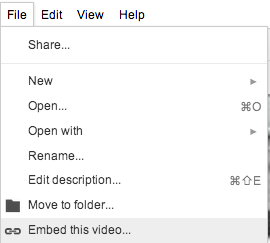
      Use Embed this video to allow playback of your Google Drive videos on mobile devices.
      • Choose File > Embed Video

      • Click in the box to select the HTML code and then from your browser menu choose Edit > Copy

      • Click OK.
      • Click in your Google Sites page where you want the video to display.
      • Choose Insert > More gadgets ... and type embed in the Search box. 
      • Select to select the Embed gadget and then click the blue Select button. 
      • Click in the Embedding snippet box and from your browser menu choose Edit > Paste. You can edit the width and height but make them proportional to the original. 

      • Scroll to the bottom of the gadget window and enter the Width and Height to match the dimensions of your video. 
      • As an option check Include a border around gadget and Display title on gadget, entering a descriptive name. 

      • Click the OK button to insert the gadget. You will need to click the Google Sites blue Save button at the top to save the page changes and display the embedded video. Note that this video will also play on mobile devices. Below is a sample video. 


      Appendix

      Upload Your Recording to Google Docs – Drag and Drop 

      If your browser is Firefox, Safari, or Firefox, then try Drag and Drop as an alternative to uploading your video to Google Docs.
      • Log on to Gmail with your Google Apps account. 
      • Click the Documents link in the top left menu bar. 
      • Locate your video in the Videos folder. Drag your video to your Google Drive window.  
      • You will be prompted to Upload your video. Keep the default settings: Convert documents and Confirm settings before each upload.  
      • Click the Start upload button.

      November 20, 2012

      Inserting Audio into Google Sites Pages

      Google does not provide a direct way to insert or embed audio into Google Sites as it does with video. Playing audio requires uploading the sound file and the use of one or two gadgets depending on your audience and the length of your audio recording. Audio can be uploaded to an external web site or uploaded as an attachment to your Google Sites page.  Next an audio player gadget is inserted, which links to the audio file's URL. The following techniques are especially useful for developers of personal e-portfolios to add evidence of their learning through audio recordings. 

      Scenario 1: Google Audio Player (Flash)

      Advantage: loads and plays audio quickly and plays consistently across all browsers
      Disadvantage: Flash player that will not work on most mobile devices such as an iPad or iPhone.  
      • Create or go to the web page where you will insert the audio.
      • At the bottom of the page click Add files and browse for the audio file.
      • Click Open to attach the file. It may take a few moments to upload depending on the file's size.
      • Refer to the figure below. Control-click (Mac) or Right-click (Windows) on the download arrow icon and choose Copy Link Address. This address will be copied to the Google Audio Player.
      • Locate the point on your page where the audio is to be embedded and choose Insert > More gadgets ...
      • Click Public in the left sidebar.
      • In the Search box type in quotes "Google Audio Player".
      • Click the Search icon to bring up the player(s). 
      • Click once to select the Use Google Audio Player to play .mp3 file.
      • Next click the BLUE Select button to bring up the gadget settings.
      • Click in the mp3 files to play box and remove the entire URL.
      • Click in this now empty box. Right-click (Windows) or Control-click (Mac) and choose Paste. This will paste the address that you copied from your audio attachment. 
      • Backspace out the ?attredirects string of text up to the audio file suffix (e.g. mp3). See below for an example. The part to erase is crossed out. 
      https://sites.google.com/a/elmira.edu/it/gapps
      /gsites/sitesaudio/nzoku_reading.mp3?attredirects=0&d=1
      • Apply settings as described on the figure below.
      • Click the OK button to apply the settings. To play examples click the link below.  
      Examples of audio inserted into Google Sites.

      Scenario 2: Embed Music (No Flash)

      Advantage: Loads quickly and plays on mobile devices.  
      Disadvantage: Larger audio files load slowly on web pages (up to 1 or 3 minutes) using Google Chrome and Firefox. 
      • Create or go to the web page where you will insert the audio.
      • At the bottom of the page click Add files and browse for the audio file.
      • Click Open to attach the file. It may take a few moments to upload depending on the file's size.
      • Refer to the figure below. Control-click (Mac) or Right-click (Windows) on the download arrow icon and choose Copy Link Address. This address will be copied to the Embed Music player.
      • Locate the point on your page where the audio is to be embedded and choose Insert > More gadgets ...
      • Click Public in the left sidebar.
      • In the Search box type in quotes "Embed Music".
      • Click the Search icon to bring up the player(s). 
      • Click once to select Embed Music
      • Next click the BLUE Select button to bring up the gadget settings.
      • Click in the mp3 files to play box and remove the entire URL.
      • Click in this now empty box. Right-click (Windows) or Control-click (Mac) and choose Paste. This will paste the address that you copied from your audio attachment. 
      • Backspace out the ?attredirects string of text up to the audio file suffix (e.g. mp3). See below for an example. The part to erase is crossed out. 
      https://sites.google.com/a/elmira.edu/it/gapps
      /gsites/sitesaudio/nzoku_reading.mp3?attredirects=0&d=1
      • Adjust settings as needed.
      • Click the OK button to apply the settings. Click the link below to play example recordings. 
      Examples of audio inserted into Google Sites

      March 18, 2012

      Peace Corps, Congo, and Polio


      The Elmira College Rotaract Club has contributed significantly to Rotary International's mission to eradicate polio and asked that I present my experiences as a Peace Corps Volunteer in the Congo and how polio has affected that country as part of the Global Eradication Initiative. Below are the Slideshare slides followed by related links that I used for general research, reading, and preparation for the presentation.

      December 11, 2011

      Presenting PowerPoint slide shows with your iPad or iPhone

      Presenting PowerPoint slide shows with your iPad or iPhone


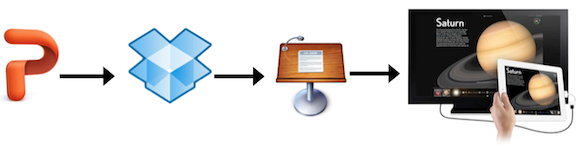
      Keynote for Macintosh is well-known for its elegance, ease-of-use, and graphical display tools but PowerPoint is still the presentation tool of choice for most users. Even though Keynote for iOS devices is the de facto presentation app, you can creative an efficient workflow using the desktop version of PowerPoint to efficiently display your slides on your iPad or iPhone (4 or 4S). Additionally, you can use your iOS device to project your presentation to a HD flat screen TV or large projection screen with a data projector.

      What you will need
      • PowerPoint for Windows or Macintosh
      • Free Dropbox account and iOS app
      • Keynote for iPhone (4 or 4S) or iPad ($9.99 for one or the other or both)
      • iOS version 5
      • VGA or HDMI adapter (optional)
      • HD TV or data projector with projection screen (optional)
      Save to Drop Box

      You will need to have a Dropbox account that is set up for synchronization with a Dropbox folder on your PC or Mac.   
      • If you have not already done so go to http://dropbox.com and set up a Drop Box account on your PC or Mac. 
      • Create a folder named PowerPoint in your computer's Dropbox folder.
      • Save your PowerPoint presentations to this folder (e.g. technology_tools_teacher.pptx), which will automatically be synchronized to your Drop Box server share. 
      Open in Keynote
      • Install the Dropbox app on your iPhone or iPad and then start the app.
      • Locate and open your PowerPoint into Dropbox, which displays the slides in one page but does not index nor display them separately. 
      • Click the curved Open In icon in the upper right corner of the Dropbox screen and choose Keynote.
      • Wait until Keynote loads - ignore any font substitution warnings.

      If you plan to make changes to your PowerPoint, then you will need to re-import the file into Keynote.

      Sychronize with iCloud and other iOS devices

      You can also synchronize your Keynote presentations with other iOS devices. For example, you could import all your PowerPoints into Keynote for iPad and then sync them with your iPhone. 

      • For your iPac choose Settings > iCloud and add your Apple ID (typical iTunes account) and password.
      • Choose Documents & Data and turn the setting to ON.
      • Choose Settings > Keynote and turn the setting Use iCloud to ON.
        Present from your iPad or iPhone

        With an iPad, iPad 2, iPhone 4 or 4S you can project your Keynote presentation to an HD TV using an Apple Digital AV adapter or to a data projector with an Apple VGA adapter. Only the iPad 2 and iPhone 4S support mirroring whatever is on the screen. However, when you press the Keynote Play button, the slides will also display on a HD TV or projection screen for an iPhone 4 or iPad 1.

          Distraction Free Reading

          You are not alone if you have struggled to keep your focus reading through articles on the web that are bombarded with still and animated...